July 2026 Product Update
By GeoRankers Team · Updated on July 7, 2026
This past month brought a per-model breakdown of your visibility data, automated weekly prompt runs, Negative AI Framing surfaced with raw evidence, Highest Priority prompts flagged for you to target, a standalone AI Readiness Checker, Signal Tracker built into Recommendations, and the ability to invite teammates with role-based access.
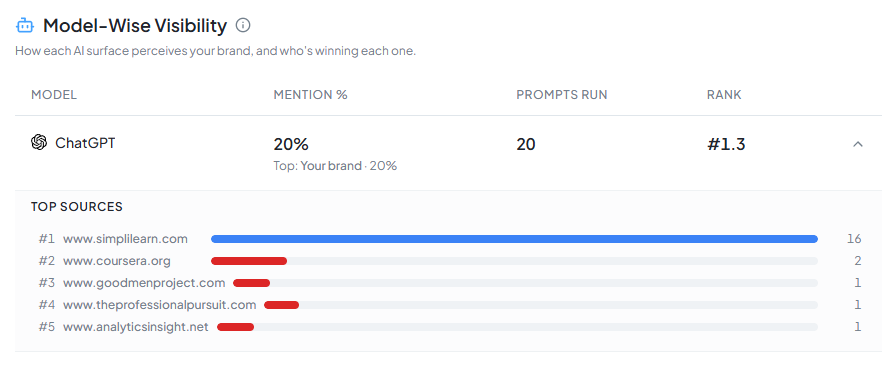
Model-Wise Visibility Breakdown
What it is: A per-model view of how your brand performs across each AI platform individually, instead of one blended score.
How it works: Breaks out mention rate, prompts run, and rank separately for ChatGPT, Google AI Mode, and Google AI Overview — plus which competitor is winning each model and their top-cited domains — so you can see if you're strong on one platform and invisible on another.
How to use it: Find the Model-Wise Visibility card on the Overview page, or the full breakdown under Performance Insights.
Automated Prompt Runs
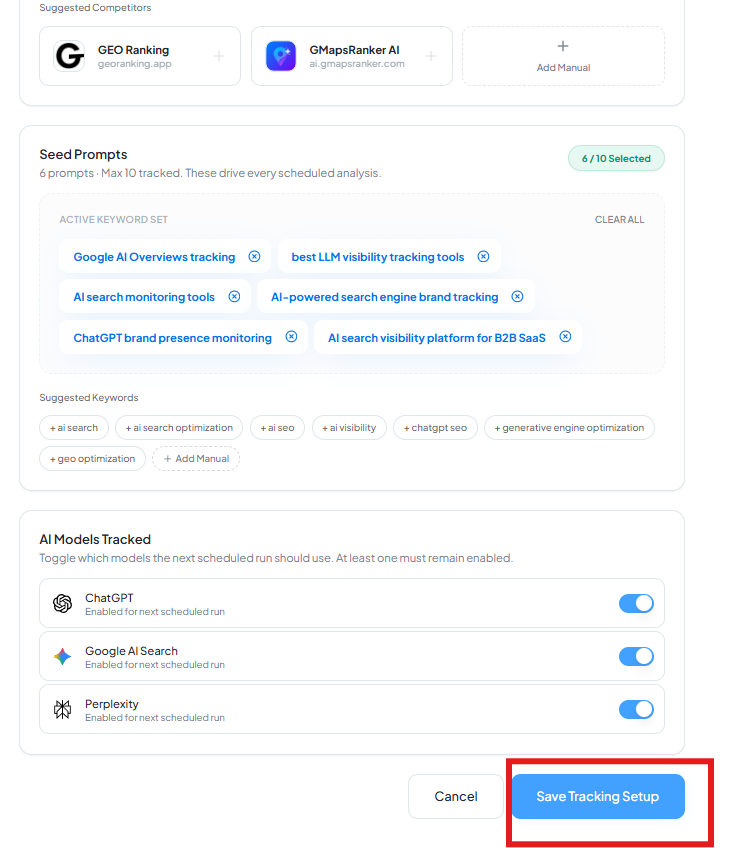
What it is: Scheduled analysis now runs on a weekly cadence.
How it works: Once your tracking setup is saved, GeoRankers runs your prompts against all enabled AI models automatically every week — no manual trigger required to keep your visibility data current.
How to use it: Update your competitors, seed prompts, or tracked models anytime inside Edit Tracking Setup. We use your last saved configuration for the next scheduled run — check Previous Analytics to see your run history.
Negative AI Framing Surfaced
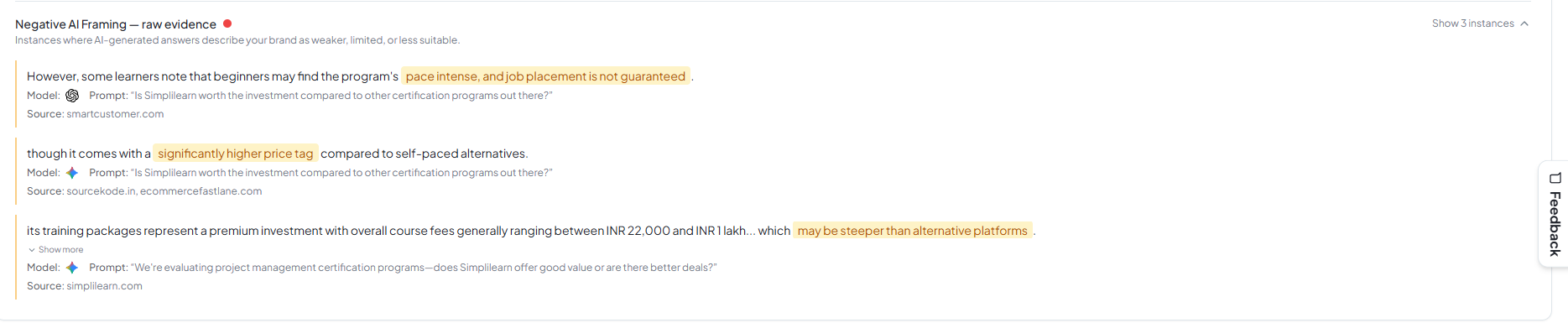
What it is: A dedicated view of moments where AI-generated answers describe your brand negatively, weakly, or as a worse fit than competitors.
How it works: Scans tracked AI responses for negative or unfavorable framing of your brand specifically and surfaces each instance with the raw evidence and severity, so you know exactly where the negative narrative is coming from instead of only seeing an aggregate sentiment score.
How to use it: Find "Negative AI Framing" inside Executive Summary.
AI Readiness Checker
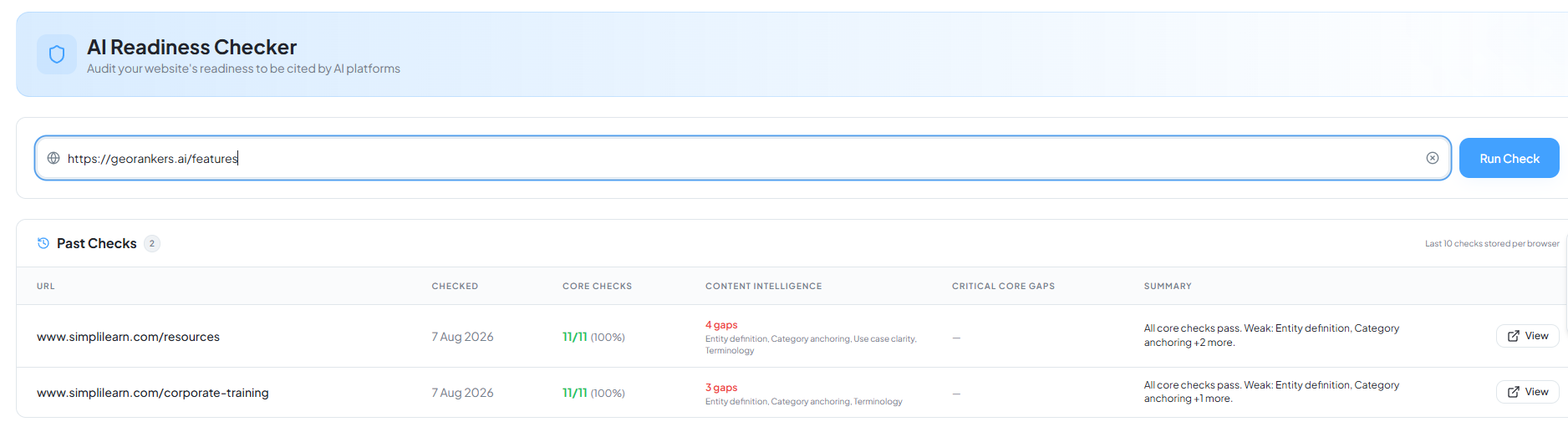
What it is: A tool that audits whether a specific page on your site is technically structured well enough to be cited by AI platforms.
How it works: Enter any URL and run a check against core technical requirements plus content intelligence factors (entity definition, category anchoring, terminology) — you get a pass/fail on core checks and a list of any gaps holding the page back from citation.
How to use it: Go to Action Center → AI Readiness Checker, paste in a URL, and click Run Check.
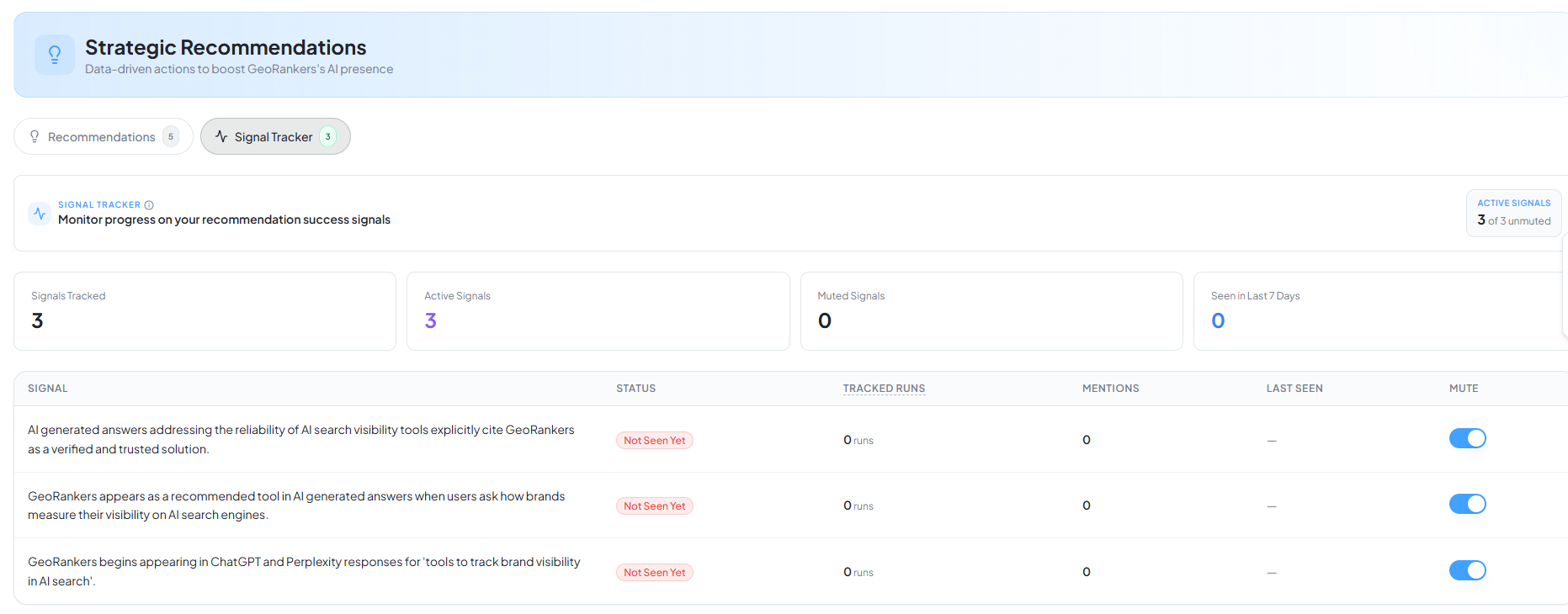
Signal Tracker in Recommendations
What it is: A way to track whether a specific action you've taken is actually showing up in AI responses over time.
How it works: Tag a success signal — a specific mention, ranking, or citation you're trying to achieve — and Signal Tracker checks for it across your last 10 runs, showing whether it's being consistently seen, seen occasionally, or not yet appearing.
How to use it: Go to Action Center → Recommendations → Signal Tracker. Signals are attached directly to specific recommendations, so you can see if the action you took actually moved the needle.
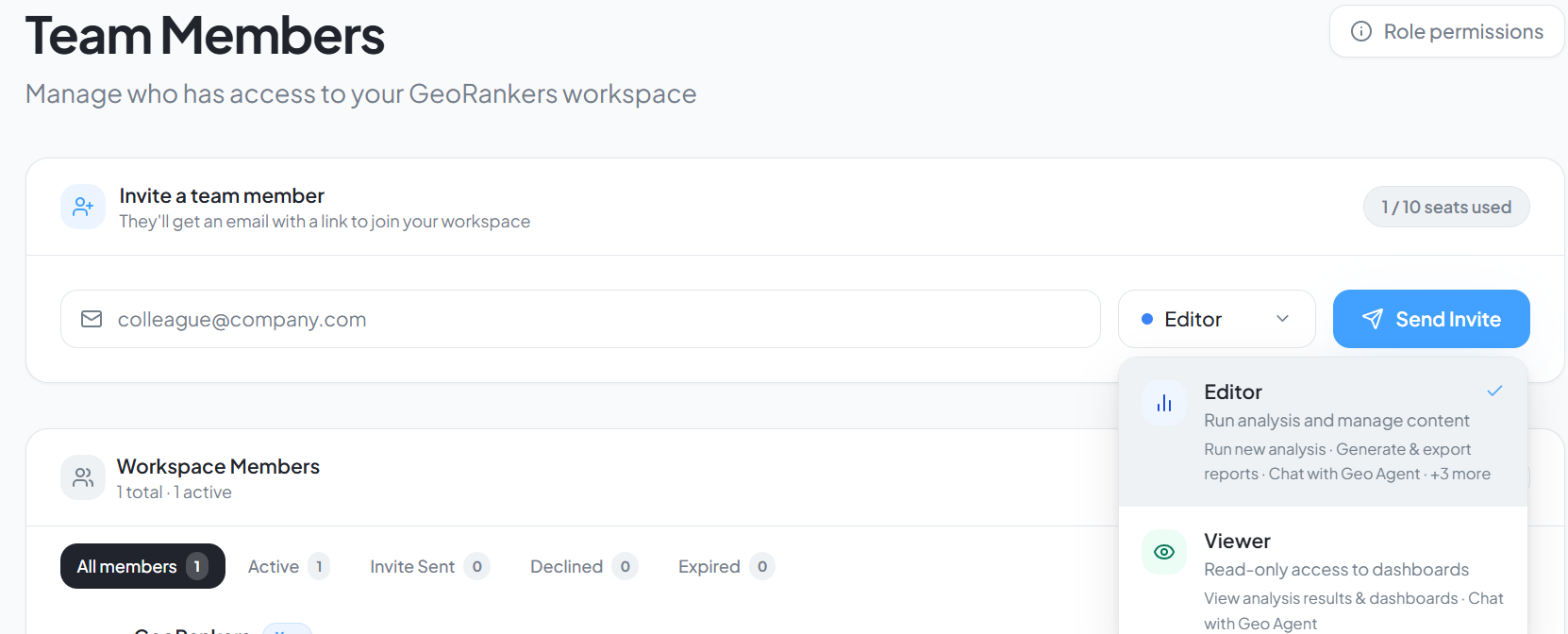
Invite Your Team
What it is: The ability to add teammates directly to your GeoRankers account with role-based access.
How it works: Invited teammates can be added as Admin (full control — billing, users, and all analysis/reporting features), Editor (can run analysis and manage content — competitors, keywords, reports), or Viewer (read-only access to dashboards and reports).
How to use it: Click your account menu and select Teams, then enter your teammate's email along with their role. They'll receive a link on their email using which they can join the team and start using GeoRankers.
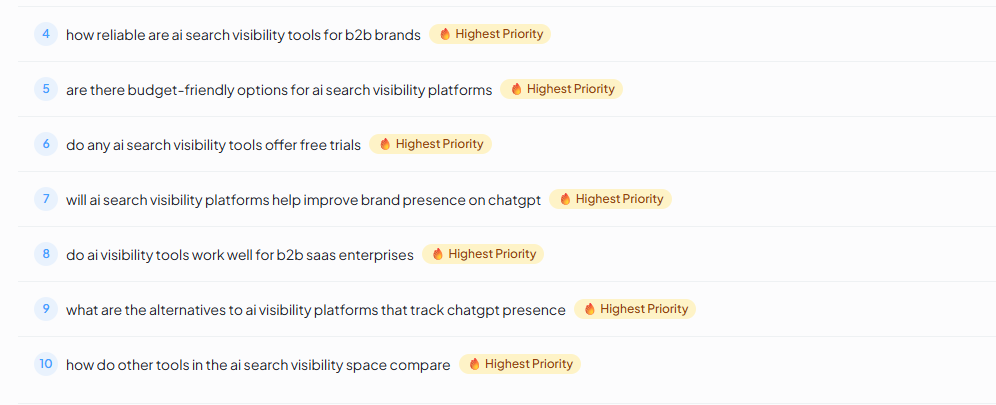
Highest Priority Tags in Prompts
What it is: A "🔥 Highest Priority" badge that flags the prompts where you most urgently need to get cited.
How it works: GeoRankers evaluates each prompt based on how your competitors are performing against you — complete gaps, unstable visibility across platforms, high-intent comparison/pricing/trust/use-case queries where competitors show up and you don't, or negative framing tied to that query — and tags the highest-impact ones with specific reasons in a tooltip.
How to use it: Go to the Prompts tab and look for the 🔥 Highest Priority badge next to a prompt; hover it to see exactly why it was flagged.
Ready to explore these updates?
Dive into your dashboard to start using the latest features and improvements we added to GeoRankers.
Go to Dashboard